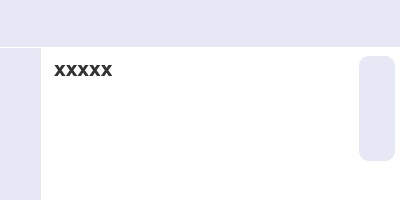
The first thing you will need to do is open up your existing site. Take a page and save it as blank.asp. Open that page and remove the main center content from the body - typically this would mean leaving in place the header, left navigation, footer and any right hand content so you are left with some white space in the center of the page which will be populated by the shopping cart software. In that white space type "xxxxx" so you see something like this where the blue rectangles represent your existing header, navigation etc.
Now in code / HTML view, locate xxxx and replace it with
<!--#include file="vsadmin/db_conn_open.asp"-->
<!--#include file="vsadmin/inc/languagefile.asp"-->
<!--#include file="vsadmin/includes.asp"-->
<!--#include file="vsadmin/inc/incfunctions.asp"-->
<!--#include file="vsadmin/inc/inccart.asp"-->
Save the page you have just made as cart.asp. You have now made your first store page - this will be the page that displays the cart contents as well as the checkout flow. The cart will only show when you have your site on the server and the database connected as it is dynamically populated from the software.
You can now go on to make the other pages that will make up your store.
Open the page you have just made, cart.asp, and save it as products.asp
Find the 5 ASP include lines you entered previously and change the last line from
<!--#include file="vsadmin/inc/inccart.asp"-->
to
<!--#include file="vsadmin/inc/incproducts.asp"-->
Save products.asp and you now have your second page, products.asp. This is the page that will show the products you have on your store. You'll see that for each of the store pages you set up the first 4 include lines stay the same, whilst the last one identifies the content of that particular page and uses the same page name eg. inccart.asp = cart.asp, incproducts.asp = products.asp etc.
Each product can have its own detail page. This usually includes a larger products image along with a longer description of the item and is linked from the products page. It is optional but is used on most stores. So save products.asp as proddetail.asp. Find the line
<!--#include file="vsadmin/inc/incproducts.asp"-->
and change it to
<!--#include file="vsadmin/inc/incproddetail.asp"-->
Save proddetail.asp and we'll move on to the next one.
Now we'll set up the categories page, each product has to be assigned to category. You can have as manu products as categories as you like, some categories may contain sub-categories and others will contain products. Save proddetail.asp as categories.asp. In code view find the line
<!--#include file="vsadmin/inc/incproddetail.asp"-->
and change it to
<!--#include file="vsadmin/inc/inccategories.asp"-->
Make sure you save categories.asp and we'll move on the next page.
We'll now make the search page, which will give your customers the chance to search your products based on the text in the product name, id and / or description. Save categories.asp as search.asp. In code view change the line
<!--#include file="vsadmin/inc/inccategories.asp"-->
to
<!--#include file="vsadmin/inc/incsearch.asp"-->
Now to make the thanks page. This is the page that the customer will see following a successful transaction. It contains a summary of the purchase and customer details, it also triggers the email confirmation of the order sent to both the buyer and seller. Save search.asp as thanks.asp and then find the line
<!--#include file="vsadmin/inc/incsearch.asp"-->
and change it to
<!--#include file="vsadmin/inc/incthanks.asp"-->
Save thanks.asp.
If the order isn't authorized, the customer will be returned to sorry.asp with a message explaining the payment failure. To set up this page, save thanks.asp as sorry.asp and change the line
<!--#include file="vsadmin/inc/incthanks.asp"-->
to
<!--#include file="vsadmin/inc/incsorry.asp"-->
Save sorry.asp and you are finished setting up the main pages that will make up your store.
There are however some extra pages you may want to add.
If you want to use the in-built affiliate program save sorry.asp as affiliate.asp and change the last ASP include line to
<!--#include file="vsadmin/inc/incaffiliate.asp"-->
If you want customers to have the ability to track their orders through your store, save sorry.asp as tracking.asp and change the last line to
<!--#include file="vsadmin/inc/inctracking.asp"-->
If you want customers to check on their order status, save sorry.asp as orderstatus.asp and change the last line to
<!--#include file="vsadmin/inc/incorderstatus.asp"-->
If you are using the customer login feature and want customers to view their account details, save sorry.asp as clientlogin.asp and change the last line to
<!--#include file="vsadmin/inc/incclientlogin.asp"-->
If you want to offer gift certificates through your store, save sorry.asp as giftcertificate.asp and change the last line to
<!--#include file="vsadmin/inc/incspecials.asp"-->
Finally before the closing </head> tag on all your pages, add the following two lines to call the two css files
<link rel="stylesheet" type="text/css" href="css/ectcart.css"/>
<link rel="stylesheet" type="text/css" href="css/ectstyle.css"/>
ectcart.css shouldn't be edited as it will be updated when you apply the updater in the future - it contains the core css layouts for the shopping cart generated forms etc. If you need to make any tweaks to the styling, they can be added to ectstyle.css and is why that needs to come after ectcart.css in the code.
You will also need to add the path to ectcart.js on all the frontend store files before the closing </head> tag
<script type="text/javascript" src="js/ectcart.js"></script>
Once you have made all the pages you require, you will need to upload them to your host along with the folders vsadmin (which contains all your admin files), prodimages (the default location for the products images), fpdb (the default location for the Access database) and the css folder.
Now follow the steps for making the database connection http://www.ecommercetemplates.com/help/ecommplus/instructions.asp#dbconn
Please Note
If you view source in the Generic Version you downloaded you will see we have placed these ASP include lines at the top of the code on all pages...
<!--#include file="vsadmin/db_conn_open.asp"-->
<!--#include file="vsadmin/inc/languagefile.asp"-->
<!--#include file="vsadmin/includes.asp"-->
<!--#include file="vsadmin/inc/incfunctions.asp"-->
<!--#include file="vsadmin/inc/metainfo.asp"-->
This is so it is easier to use the dynamic title and meta description tags on the product, detail and category pages. It is imperative that these are not duplicated elsewhere on the page.